





Xbox Game Pass Core is your essential ticket to online multiplayer and a curated collection of over 25 high-quality games. Getting started is simple, and one of the most accessible ways to begin is to Buy XGPC Subscription CD Keys from Z2U, offering a convenient and often cost-effective path.
How to Find and Download Games from the Game Pass Core Catalog?
Navigating the Game Pass Core catalog to find and download your next favorite game is an intuitive process designed for maximum ease of use. On your Xbox console, simply navigate to the Game Pass section from the dashboard. Here, you will find a dedicated area for the Game Pass Core catalog, often showcasing new additions, popular titles, and games sorted by genre. You can browse all available games, use the search function to find a specific title, or apply filters to narrow down your options based on criteria like genre, number of players, or storage size. Once you have found a game you want to play, selecting it will take you to its store page. From there, you have two main options: "Install" or "Add to Play Later." Choosing "Install" will immediately begin downloading the game to your console's hard drive, while "Add to Play Later" saves it to a personal list within the Game Pass hub, making it easy to find and download at a more convenient time. The same process can be managed remotely via the Xbox mobile app, allowing you to queue up downloads to your console from anywhere, ensuring your game is ready and waiting when you get home.
How to Effectively Manage Your Installed Games and Storage?
As your library of downloaded games grows, effective management becomes crucial to maintaining a smooth and organized gaming experience. Running out of storage space or struggling to find a specific game can be frustrating. The following strategies will help you take full control of your installed games and storage capacity.
1. Master the "My Games & Apps" Hub
The "My Games & Apps" section is where you manage everything on your Xbox. You can view all games and apps, check file sizes, and sort them by name, size, last played, or group. Sorting by size helps free up space for new downloads. You can also manage updates, installation queues, and organize favorite games into custom groups for easier access. Familiarizing yourself with this section makes managing your console much easier.
2. Strategically Utilize an External Hard Drive
Using a compatible external USB 3.0 hard drive is an easy way to expand your Xbox storage. Games can be very large, and internal storage fills up quickly. You can install new games to the external drive or choose which games stay on the internal SSD for faster load times. You can also play directly from the external drive and easily move your library to another console, saving time and avoiding repeated downloads.
3. Implement a Smart Uninstallation and Reinstallation Routine
Uninstalling a game doesn’t delete it forever. With Game Pass Core, you can re-download any game in the catalog as long as your subscription is active. Save data is stored in the cloud, so progress is safe. Uninstall games you've finished or aren’t playing to free up space, or move them to an external drive. This keeps your console storage organized and focused on the games you're currently playing.
4. Proactively Manage Updates and Downloads
Background updates are a fantastic feature, but they can sometimes cause congestion if multiple large updates are scheduled simultaneously. You can take control of this through the console's settings. Navigate to Settings > System > Updates to manage how your console handles them. You can choose to keep games and apps up to date automatically, which is generally recommended. More importantly, you can schedule update times, such as during the night when you are not using the console. For downloads, you can pause, resume, and prioritize them. If you are downloading a new game but also need a critical update for a game you plan to play immediately, you can prioritize the update to ensure it completes first. This level of control prevents a large download from hindering your ability to jump into a quick online match with friends.
5. Leverage the Xbox Mobile App for Remote Management
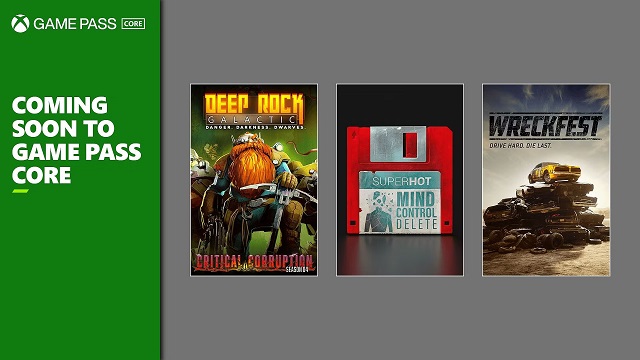
Your phone is a powerful tool for managing your Xbox console from anywhere. The Xbox app allows for complete remote control over your game library. If you are at work or out and about and see that a new game has been added to Game Pass Core, you can immediately initiate the download to your home console through the app. Similarly, you can check the status of ongoing downloads, manage your storage by seeing what is installed, and even remove games you no longer need. This remote functionality means you never have to wait to start a download. You can ensure your console is always prepared for your next gaming session, making your time at home with your console more about playing and less about waiting.
In conclusion, Xbox Game Pass Core makes accessing and managing games easy. Using console tools, managing storage, and keeping your library organized ensures a smooth and enjoyable gaming experience.Remember, the value of the service can be extended even further by seeking out deals, such as offers for Cheap XGPC Subscription CD Keys, which can provide significant savings on your subscription and allow you to invest more in your gaming setup, like that crucial external hard drive.









SUPPORT
LEGAL
Policies






 USD ($)
 English
  Help Center