


How to Upload Products in Bulk
If you have a large number of products to sell, you can choose the bulk upload method.
1. After logging into your Z2U account, go to the product publishing page and select Download List under Bulk Publish Products.
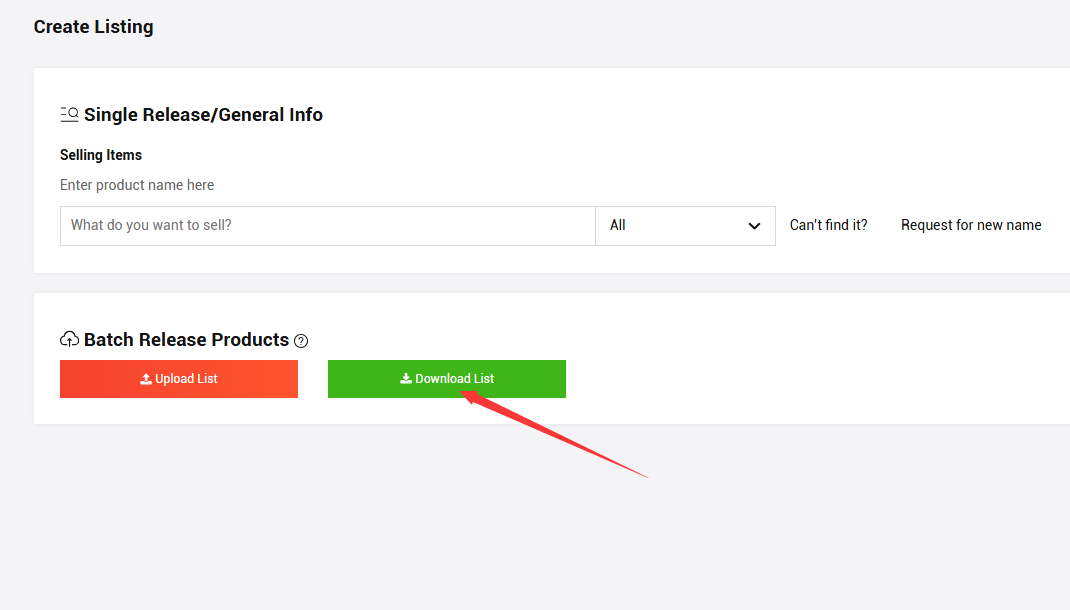
After selecting the corresponding game and category:
The left-side download list is used for publishing your own customized products.
The right-side “Product Follow-Up” list is used for publishing popular products.
(If there is no “Product Follow-Up” option, it means there are no platform-created popular products under that game category.)

2. After downloading the list, open it to fill in the product information for bulk uploading. Clicking on 'Reference' will redirect you to the corresponding section where the information can be filled in. Any section labeled with 'Reference' can be clicked to navigate to the relevant information that can be filled in (the image uses currency as an example).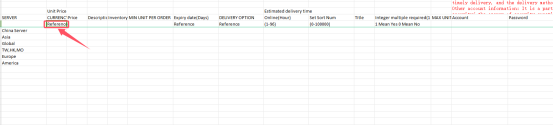

After filling in the server, currency, and other information, pay attention when filling out the Product Specification. When entering multiple 5-star characters or 5-star weapons, they should be listed in the same field and separated by commas. For other fields that require multiple pieces of information, use commas to separate them as well.
When filling in 5-star weapons and their quantities, they must correspond one-to-one. Any quantity exceeding the limit will not be valid. For example: 5-star character names: a1, a2, a3 and quantities: 1, 9, 2. a1 corresponds to quantity 1, a2 will not be valid because its quantity exceeds the maximum limit, and a3 corresponds to quantity 2.
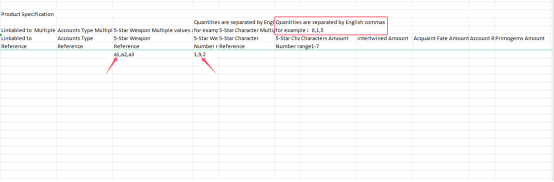
Note: Each row represents one product.
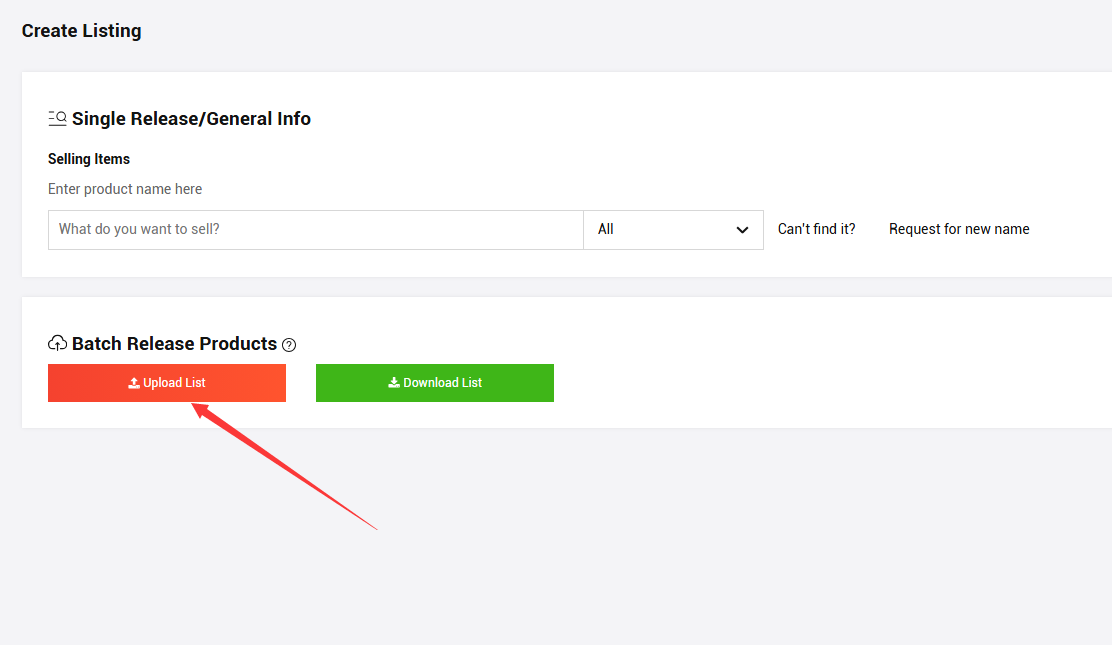
3. Once the information is filled out, click 'Upload List' to proceed.











SUPPORT
LEGAL
Policies






 USD ($)
 English
  Help Center